
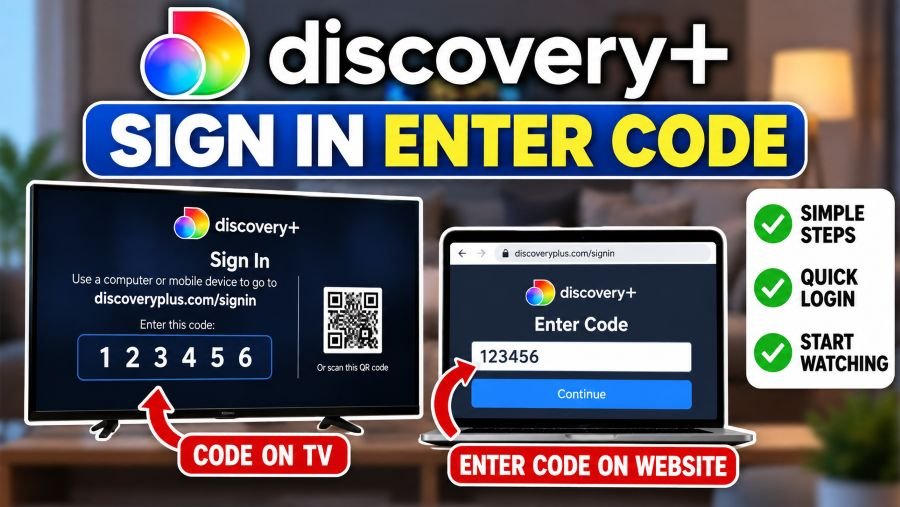
Trying to use discoveryplus.com sign in enter code? The process is simple. Your TV shows a six-digit code. Open discoveryplus.com/signin on your phone or computer, enter that code, then sign in with your Discovery+ account.
That is the current official method. You can also scan the QR code shown on your TV.
Quick Facts
| Detail | Information |
|---|---|
| TV code page | discoveryplus.com/signin |
| TV code length | 6 digits |
| Code appears on | Discovery+ TV app |
| QR sign-in | Yes |
| Normal computer login | discoveryplus.com/login |
| Other TV login choice | Email and password |
| Mobile app TV login | Available on some devices |
| Simultaneous streams | Up to 4 devices |
Discovery+ currently allows streaming on up to four devices at once.
What Is Discoveryplus.com Sign In Enter Code?
The phrase sounds confusing. Basically, it means connecting your TV to an existing Discovery+ account.
You do not create the code yourself.
The Discovery+ app creates it.
Open the app on your TV. Choose Sign In. Then pick Use a Code.
A six-digit code appears.
Keep that screen open.
Now use a phone or computer. Visit discoveryplus.com/signin and type the code shown on your TV. Discovery+ will then ask for your account email and password.
Once accepted, return to your TV. Choose the profile you want.
You can start watching.
How to Enter the Discovery+ TV Code
Here is how it works.
- Open Discovery+ on your TV.
- Choose Sign In.
- Select Use a Code.
- Leave the code screen open.
- Use your phone or computer.
- Open discoveryplus.com/signin.
- Enter the six-digit TV code.
- Enter your Discovery+ email.
- Enter your account password.
- Return to your TV.
- Choose who’s watching.
That’s it.
Discovery+ also displays a QR code on the television. You can scan it with your phone camera and open the link that appears.
Where Do I Find My Discovery+ Code?
Look at your television.
The code appears after opening the Discovery+ app and choosing:
Sign In → Use a Code
It should be a six-digit code.
Do not search your email for this particular TV code. The TV itself displays it.
This matters because Discovery+ has another six-digit code used for passwordless account login. They serve different jobs.
TV Code vs Email Sign-In Code
This catches people out.
Discovery+ uses more than one type of code.
TV Sign-In Code
The TV sign-in code appears on your television.
Enter it at:
discoveryplus.com/signin
It connects the TV with your account.
One-Time Email Code
Discovery+ also lets some users sign in without typing their password.
Choose Get a Code Instead when asked for a password.
Discovery+ then sends a six-digit code to the email address linked with the account. Enter that code to sign in.
So, check the source.
TV screen means TV login code. Email means one-time account code.
Can I Scan the QR Code Instead?
Yes.
Honestly, this can be quicker.
Keep the Discovery+ sign-in screen visible on your TV. Open your phone’s camera and point it at the QR code.
Tap the link shown.
Then follow the sign-in prompts.
Discovery+ officially supports this method alongside manually entering the six-digit TV code.
Other Ways to Sign In on a TV
You are not limited to codes.
Discovery+ currently lists three TV sign-in choices.
Use a Code
This is the main method covered here.
Enter the displayed code through discoveryplus.com/signin.
Use the Discovery+ Mobile App
Some TV devices support mobile-app sign-in.
Choose Use discovery+ Mobile App on the TV. Open Discovery+ on your phone or tablet.
If Discovery+ asks for permission, choose Allow.
Your TV and mobile device should use the same Wi-Fi network for this method. The option is not supported on every TV device.
Use Email Address
No code needed.
Choose Use Email Address on the television and type your account email and password with the remote.
Then select your profile.
Discovery+ Code Not Working?
A failed code does not always mean your account has a problem.
Try these checks first.
Open a Private Browser Window
Open an incognito or private browser window.
Then visit discoveryplus.com/signin again.
Discovery+ officially recommends this when the six-digit TV code fails.
Try Another Browser
Use a supported browser.
Current Discovery+ support recommends recent versions of Chrome, Firefox, Microsoft Edge, or Safari for computer access.
Use Email Sign-In
Go back to the TV.
Choose Use Email Address instead.
Enter your email and password directly.
Check Your Account Details
Make sure the email is correct.
A simple typo can stop login.
If you cannot remember the password, use Discovery+’s password recovery or choose Get a Code Instead where offered.
Why Can’t I Sign In After Buying Discovery+ Elsewhere?
This is a big one.
How you bought Discovery+ matters.
The U.S. Discovery+ Help Center states that users subscribed through services such as Amazon Prime Video Channels, The Roku Channel, DIRECTV, DIRECTV STREAM, DISH, or Sling TV cannot use those provider credentials to sign directly into the standalone Discovery+ service.
Instead, they watch Discovery+ through the service where they subscribed.
For example, buying Discovery+ through another streaming platform does not automatically mean that login works inside the separate Discovery+ app.
Check your billing source first.
It can save time.
Discoveryplus.com/signin vs Discoveryplus.com/login
These pages have different jobs.
discoveryplus.com/signin is used for the TV code process.
discoveryplus.com/login is used for a normal account login on a computer.
For a computer login, enter your Discovery+ email, continue, type your password, then choose your profile.
So if your television displays a code, use the /signin page.
Which Devices Support Discovery+?
Discovery+ works across many device types.
Current supported categories include:
- Android phones and tablets
- iPhone and iPad
- Amazon Fire tablets
- Windows and Mac computers
- Amazon Fire TV
- Android TV devices
- Apple TV
- Chromecast
- LG Smart TVs
- Samsung Smart TVs
- Roku devices
- supported game consoles and other TV hardware
Exact operating-system and model requirements can change. Discovery+ keeps its current compatibility list in the official Help Center.
If the app does not appear on an older television, the TV itself may not support it.
Using a compatible streaming player can be another choice.
How Many Devices Can Use Discovery+?
A Discovery+ subscription currently supports streaming on up to four devices at the same time.
Connected devices can also be managed through the account page.
If you spot a device you do not recognise, remove it and change your password.
That is the safer move.
Does Your Discovery+ Plan Change the Login Process?
Usually, no.
In the U.S., Discovery+ currently lists two direct subscription plans: a limited-ad plan at $5.99 per month and an Ad-Free plan at $9.99 per month, before applicable taxes. Both plans support the same Discovery+ content and supported-device access.
Pricing differs by market.
The TV code process is tied to your account sign-in, not whether you selected the ad-supported or Ad-Free option.
Be Careful With Fake Sign-In Pages
This part matters.
A TV activation search can bring up third-party websites. Some may look similar to the real service.
Check the domain before typing anything.
For the TV-code method covered here, the official page is on the discoveryplus.com domain.
Never enter your password on a strange copycat page.
If the TV tells you to enter a code, use the address shown by the official Discovery+ app.
Final Thought
Discoveryplus.com sign in enter code is simply a TV login process.
Open Discovery+ on your television. Choose Sign In, then Use a Code. Visit discoveryplus.com/signin on another device and enter the six-digit code displayed on your TV.
If it fails, try private browsing, another supported browser, the QR code, or direct email sign-in. Also check where you originally bought your subscription. That detail can explain many login problems.
Frequently Asked Questions
Where do I enter my Discovery+ TV code?
Go to discoveryplus.com/signin on your phone or computer and enter the six-digit code displayed on your TV.
How many digits is the Discovery+ TV code?
The current Discovery+ TV sign-in process uses a six-digit code.
Where can I find the Discovery+ code?
Open Discovery+ on your TV, choose Sign In, and select Use a Code.
Can I use a QR code instead?
Yes. Discovery+ can show a QR code on the TV, which you can scan with your phone camera.
Why is my Discovery+ code not working?
Try an incognito window, another supported browser, or the Use Email Address option on your TV.
Can I sign into Discovery+ without a password?
Discovery+ offers Get a Code Instead in supported sign-in flows. A six-digit one-time code is then sent to your account email.
Can I watch Discovery+ on several devices?
Yes. Discovery+ currently allows up to four simultaneous streams per subscription.
Why can’t my Amazon or Roku subscription sign into Discovery+?
Certain third-party subscriptions must be watched inside the provider’s own app rather than the standalone Discovery+ service.
